Back

Updating Tour Defaults

28/11/2022

To update your Tour Defaults, navigate to the "Embed & Preview" tab
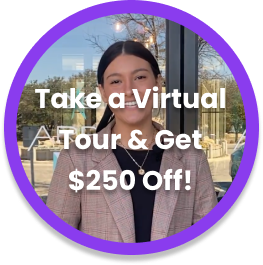
  • Button Label — allows you to update Specials (verbiage inside the bubble)
  • Primary Color — allows you to update the color theme for the entire tour. To change the color, add the hex code that corresponds to your color preference (i.e. #8A3CEE for the sample on the right)
  • Start Open — allows you to autoplay the tour for any prospect who visits the page
  • Layout — allows you to move the tour widget's popup location (lower left, center bottom or lower right of the screen)
  • Start Screen — allows you to select which specific video / screen your viewer will see first when the tour is clicked
  • Desktop Width — allows you to adjust the size of your tour’s popup screen when played
  • Widget Type — allows you to update the shape / appearance of your popup widget (Circle or Vertical)
Select “Save” after updating the defaults for the changes to apply. Reload the website (Cmd + Shift + R) or (Ctrl + Shift + R). Updates should reflect on the tour real time.

Related questions

Help Icon

FAQs

A short list of frequently asked questions and tips about using Tour.

Get my Virtual Tour Checklist

A shotlist of the videos that you need to ensure you complete an entire tour on your filming day.

Try Tour — for free

Start your free trial! Embed your best Sales agent and get 3.5x more engagement, capture 150% more leads, and be 3x more sales efficient.

Go to UseTour.com